TabPFN x Lyceum: State-of-the-art tabular data prediction and easy compute in VS Code
What if you could achieve state-of-the-art prediction accuracy without any model training or data pre-processing, all of this on your own IDE?
Having worked in Machine Learning for about 7 years, this still sounds like fantasy. I remember the hours spent running Jupyter notebooks, choosing between model families or optimising hyperparameters.
This article will explore how this is now a reality, presenting my two favourite technological discoveries of 2025: TabPFN and Lyceum.
Enter TabPFN
I wrote an entire article on TabPFN. Brought by the Prior Labs team, it is a Transformer-based model trained over millions of synthetically generated datasets. The model generates predictions in a single forward pass, without any retraining.
For a better understanding of the TabPFN architecture, I recommend reading the Nature article, and checking out the repository for Quick Start code. But, as most Transformer-based models, running inference on CPU is prohibitively slow.
There are many ways to get around this issue:
- The Prior Labs team has put together an API client (beware of sensitive data)
- With Google Colab or Sagemaker, it is now easy to run notebooks on cloud GPUs
But these two still do not feel like home. As a Data Scientist, I do love running models from the comfort of VS Code. Especially for tabular data, for which models like LGBM do a very decent job.
Enter Lyceum
I discovered Lyceum last week at a Hackathon in Berlin. Their mission statement: “User-centric GPU”. The idea is simple, running VS Code scripts on a cloud GPU, without leaving your own environment.
It works using the Lyceum VS Code extension, as easy as clicking a little cloud icon:
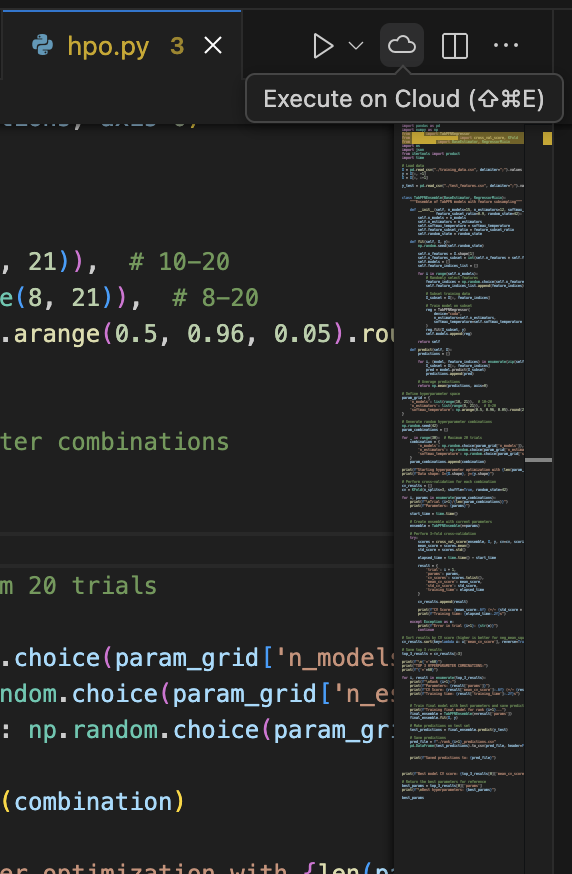
The results are then logged on the VS Code terminal, and output files written to a cloud storage, visible from the VS Code left pane:
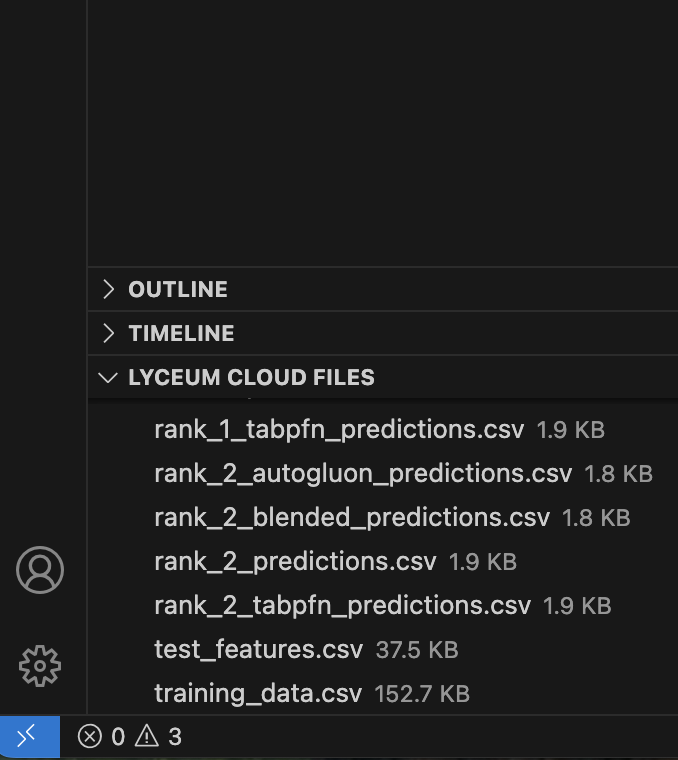
You can just drag and drop files to this area to put them on the cloud.
Some things to note:
- To read and write files from the Lyceum cloud storage, I would recommend using:
./file_name - Include the script requirements in a
requirements.txtin the same directory - When in doubt, go back to the Lyceum dashboard
This was by far my smoothest experience with Cloud Compute. By a mile. If you want to try it for free, I would recommend heading to Lyceum’s site! (no affiliation).
What an exciting time to be alive. Congrats to both teams for building such incredible products.